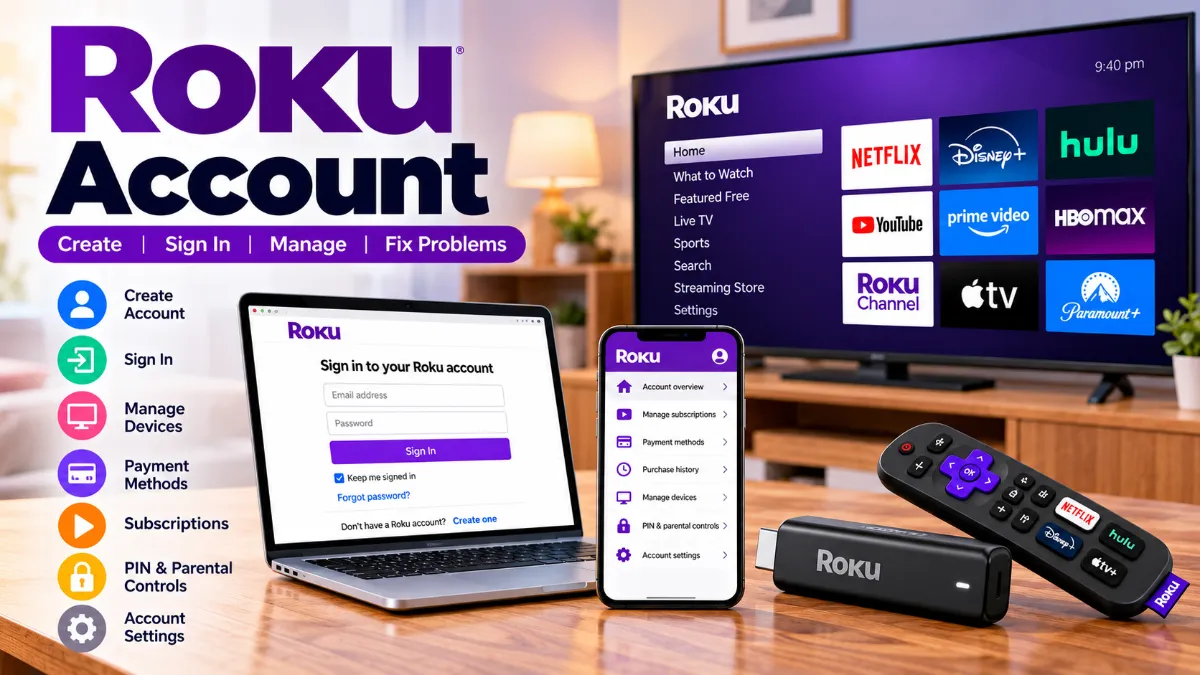
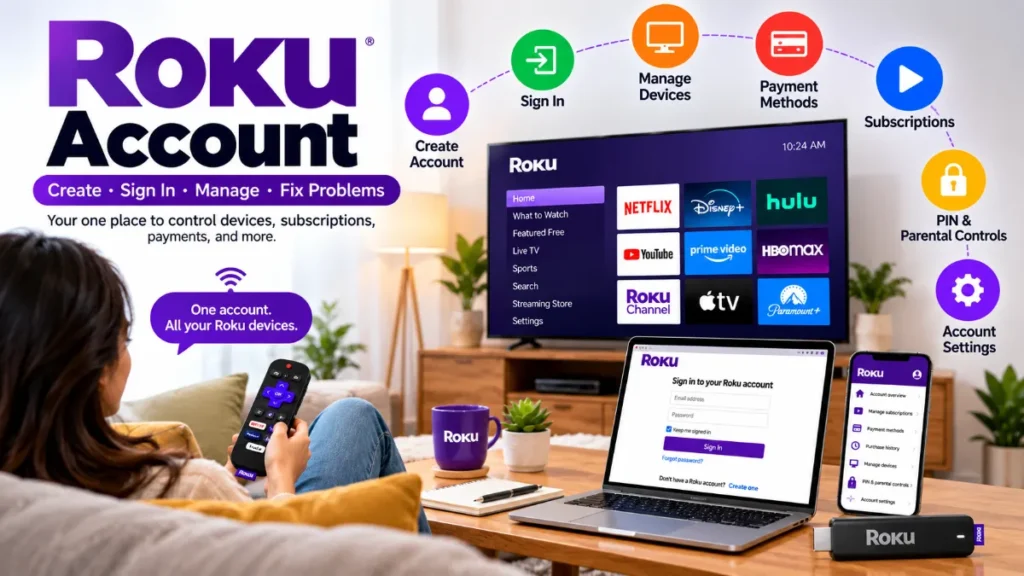
A Roku account is the central place for activating Roku devices and managing your subscriptions, purchases, payment information, PIN settings, and linked devices. Creating the account and activating a Roku device are free; you pay only when you choose paid subscriptions or make purchases.
Whether you need to create an account, sign in, find an unexpected charge, cancel a subscription, or remove an old device, this guide explains the important account-management tasks in one place.
| If you want to… | Go to |
| Create an account | Account setup |
| Sign in | Login section |
| Reset a password | Account recovery |
| Connect a device | Device linking |
| Cancel a subscription | Subscriptions |
| Investigate a charge | Payments and charges |
| Set a PIN | PIN and parental controls |
| Remove a device | Linked devices |
What Is a Roku Account?
Your account connects your Roku devices with important settings and services. You can use it to manage supported subscriptions, review purchases, update payment information, manage PIN settings, and see linked devices.
What Can You Do With a Roku Account?
From your account, you can manage many common Roku tasks, including:
- Activating and managing Roku devices
- Managing eligible subscriptions
- Reviewing purchase history
- Updating payment methods
- Setting a Roku PIN
- Managing parental-control preferences
- Reviewing linked devices
- Updating account information
Is a Roku Account Free?
Yes. Roku states that it does not charge a fee to create an account, activate a Roku device, or receive Roku customer-support service.
Paid streaming subscriptions and purchases are separate. You should therefore be cautious if an unofficial website asks for an “activation fee.”
How to Create a Roku Account
You can create an account online or as part of setting up a compatible Roku product.
Create a Roku Account Online
The basic process is:
- Visit Roku’s official account signup page.
- Enter the requested personal information.
- Create a strong, unique password.
- Select your PIN and parental-control preferences.
- Add a payment method if appropriate for your setup.
- Save the information and continue.
Use an email address you regularly access because it is important for account verification and recovery.
Create an Account While Setting Up a Roku Device
A new Roku streaming device normally guides you through setup and activation. If you already have an account, Roku generally recommends using the existing account instead of creating another one.
Using the same account can make managing multiple Roku devices, purchases, subscriptions, and settings easier.
Why Does Roku Ask for a Payment Method?
A saved payment method makes it easier to start eligible subscriptions, free trials, or purchases.
Having a payment method does not create a monthly Roku account fee. Charges occur when you authorize purchases or subscriptions.

How to Sign In to Your Roku Account
Go to Roku’s official account website and enter the email address associated with your account. Complete any verification step that appears.
Roku Account Login on a Web Browser
Once signed in, you can access account-management options such as subscriptions, purchases, devices, payment methods, and PIN settings.
Always check the website address before entering your password. Avoid entering account credentials on unofficial “Roku support” pages.
How to Check Which Roku Account Your Device Uses
If you are unsure which email address is linked to a Roku device, Roku says you can check:
Settings > System > About
This is particularly useful if your household has accidentally created multiple accounts.
Why Can’t I Sign In to My Roku Account?
Common things to check include an incorrect email address, wrong password, multiple accounts, an inaccessible email account, or a verification problem.
Start by confirming the email linked to your Roku device before creating another account.
Forgot Your Roku Account Email or Password?
Account recovery should always be done through Roku’s official services.
How to Reset Your Roku Password
Use Roku’s password-recovery option and enter the email associated with the account. Follow the instructions sent to that email address.
Also check spam or junk folders if the message does not appear.
How to Find the Email Linked to Your Roku
On a Roku streaming device, check Settings > System > About to see the linked email address.
What If You No Longer Have Access to the Email?
Use Roku’s official support and recovery options. Never give a password, payment information, or verification code to an unofficial support service.
How to Link a Roku Device to Your Account
During setup, follow the on-screen activation instructions and sign in with the account you want associated with the device.
Add a New Roku Device
A typical setup looks like:
Connect device → Complete setup → Sign in → Activate → Confirm linked device
Can You Use One Roku Account on Multiple TVs?
Yes. Multiple Roku devices can be associated with the same account. This can simplify subscription, purchase, and device management.
One Roku Account vs Separate Accounts
| One account | Separate accounts |
| Centralized management | Greater separation |
| Easier purchase tracking | Separate purchase histories |
| Shared account preferences | Independent settings |
| Convenient for many households | Useful for distinct setups |
Choose based on how independently the devices need to be managed.
How to Manage Subscriptions Through Your Roku Account
One of the most important things to determine is who actually manages the subscription.
How to Find Your Roku Subscriptions
Sign in and open your subscription-management area. Eligible active subscriptions managed through Roku should appear there.
How to Cancel a Roku Subscription
For subscriptions managed through Roku:
- Open your subscriptions.
- Choose the active subscription.
- Select Manage subscription.
- Choose Turn off auto-renew.
Roku says access generally continues until the end of the current billing cycle after auto-renew is disabled.
Roku-Billed vs Provider-Managed Subscriptions
| Situation | Where to manage it |
| Subscription managed through Roku | Roku account |
| Subscription purchased directly from provider | Provider |
| Subscription isn’t listed | Check provider and other accounts |
| Disney+, Hulu, or Sling TV billed through Roku | Follow Roku’s current provider-specific instructions |
Do not assume every app installed on your Roku is billed or managed by Roku.
Roku Account Payments, Purchase History and Charges
Your account can also help you understand where Roku-related charges originate.
How to Add or Change a Payment Method
Open Payment methods after signing in. Roku currently supports several payment options in the U.S., subject to availability.
Can You Remove Your Payment Method?
Roku currently states that subscriptions must be canceled before the payment method associated with them can be removed.
How to Review Roku Purchase History
Review your transaction history when checking subscription renewals, purchases, or unfamiliar charges. This is often more useful than immediately assuming an unfamiliar bank-statement entry is fraud.
What Should You Do About an Unrecognized Roku Charge?
Work through the issue in this order:
Purchase history → active subscriptions → free trials → other household users → multiple Roku accounts → billing provider → account security
Roku also says a temporary $1 authorization hold may sometimes appear while validating a payment method. This is not an actual purchase.
Roku PIN and Parental Controls
A Roku PIN is different from your account password.
What Is a Roku PIN?
The four-digit PIN can be used to control certain purchases, subscriptions, app additions, and parental-control functions.
How to Create or Change a Roku PIN
Sign in to your account and open the PIN settings. Choose the appropriate purchase and parental-control preferences for your household.
Roku PIN vs Roku Password
| Roku password | Roku PIN |
| Used for account security/sign-in | Used for selected purchases and controls |
| Should be strong and unique | Four digits |
| Protects account access | Helps control selected actions |
Read More: Color Chart Cooked Salmon Color
How to Secure Your Roku Account
Use a unique password and available verification protections. Roku also provides two-step verification for account sign-in.
Use a Strong, Unique Password
Avoid reusing the password from your email, social media, or other streaming accounts.
Use 2-Step Verification
Enable and use Roku’s available two-step verification features to add another layer of protection to account access.
Review Devices, Purchases and Subscriptions
Periodically check:
- Linked devices
- Recent purchases
- Active subscriptions
- Payment information
- Account email
- PIN settings
If something is unfamiliar, secure the account and investigate it promptly.
How to Remove a Roku Device From Your Account
Removing an unused device helps keep the device list organized.
When Should You Unlink a Roku Device?
Consider unlinking when a device has been replaced, is no longer yours, or appears in your account unexpectedly.
What to Do Before Selling or Giving Away a Roku
Roku recommends performing a factory reset before returning, selling, or giving away a device.
Importantly, simply unlinking a device does not cancel subscriptions or close your account.
Common Roku Account Problems and Quick Fixes
| Problem | First thing to check |
| Can’t sign in | Email and password |
| Forgot email | Settings > System > About |
| Reset email missing | Spam/junk folder |
| Subscription missing | Billing provider/account |
| Unknown charge | Purchase history |
| PIN problem | PIN settings |
| Wrong account | Linked email |
| Old device listed | Device management |
| Payment failure | Payment information |
| Suspicious access | Password and account activity |
Unique Roku Account Questions Other Guides Often Miss
Does Adding an App to One Roku Add It to Other Devices?
Devices linked to the same account can share certain app and account-related changes. Keep this in mind when managing several Roku devices in one household.
Why Is My Subscription Missing From My Roku Account?
It may have been purchased directly from the streaming provider or through another account/email. Determine who bills and manages the service before trying to cancel it.
Can Family Members Share One Roku Account?
Yes, but shared accounts can also mean shared purchases and settings. A PIN can help prevent unwanted purchases.
Does a Roku Account Replace Netflix, Hulu or Other App Accounts?
No. Your Roku credentials and a streaming provider’s credentials are separate. Some apps still require their own service account.
How Can You Tell Who Is Billing a Streaming Subscription?
Check your Roku subscription list and purchase history first. If the subscription is not managed there, check the streaming provider’s account and your billing statement.
How to Close a Roku Account Safely
Closing the entire account should be different from simply removing an old device.
Before Closing Your Account
Before proceeding:
- Review active subscriptions.
- Check recent charges.
- Review linked devices.
- Confirm you are using the correct account.
- Deal with saved payment information as appropriate.
- Follow Roku’s current official account-closure process.
Closing an Account vs Removing a Roku Device
Removing a device only unlinks that device. Closing an account is a much broader action affecting the account itself. Don’t close the entire account when your actual goal is simply to remove an old Roku.
Roku Account FAQs
1. Is a Roku account free?
Yes. Roku does not charge for creating an account or activating a Roku device. Optional purchases and paid subscriptions can cost money.
2. Do I need a Roku account to use a Roku device?
Roku requires an account to activate its streaming devices and access account-based features.
3. How do I sign in to my Roku account?
Visit Roku’s official account website and enter the email associated with your account, then complete any requested verification.
4. How can I find the email linked to my Roku account?
On a Roku device, check Settings > System > About.
5. Can I use the same Roku account on multiple TVs?
Yes. Multiple Roku devices can be linked to one account.
6. How do I cancel a subscription through my Roku account?
Open your active subscriptions, select the eligible subscription, choose Manage subscription, and turn off auto-renew.
7. Why is a subscription not showing in my Roku account?
It may be associated with another account or managed directly by the streaming provider.
8. Why do I have an unfamiliar Roku charge?
Check purchase history, subscriptions, free trials, other household users, and any additional Roku accounts.
9. What is the difference between a Roku PIN and Roku password?
The password protects account access, while the four-digit PIN controls selected purchases and other account/device actions.
10. How do I remove a device or close my Roku account?
Devices can be removed from the account’s device-management area. Account closure is a separate process and should only be used when you want to close the entire account.